How to Automate Fuel Supplier Data Imports into SAP Business One
 Simplemind business
5 min read
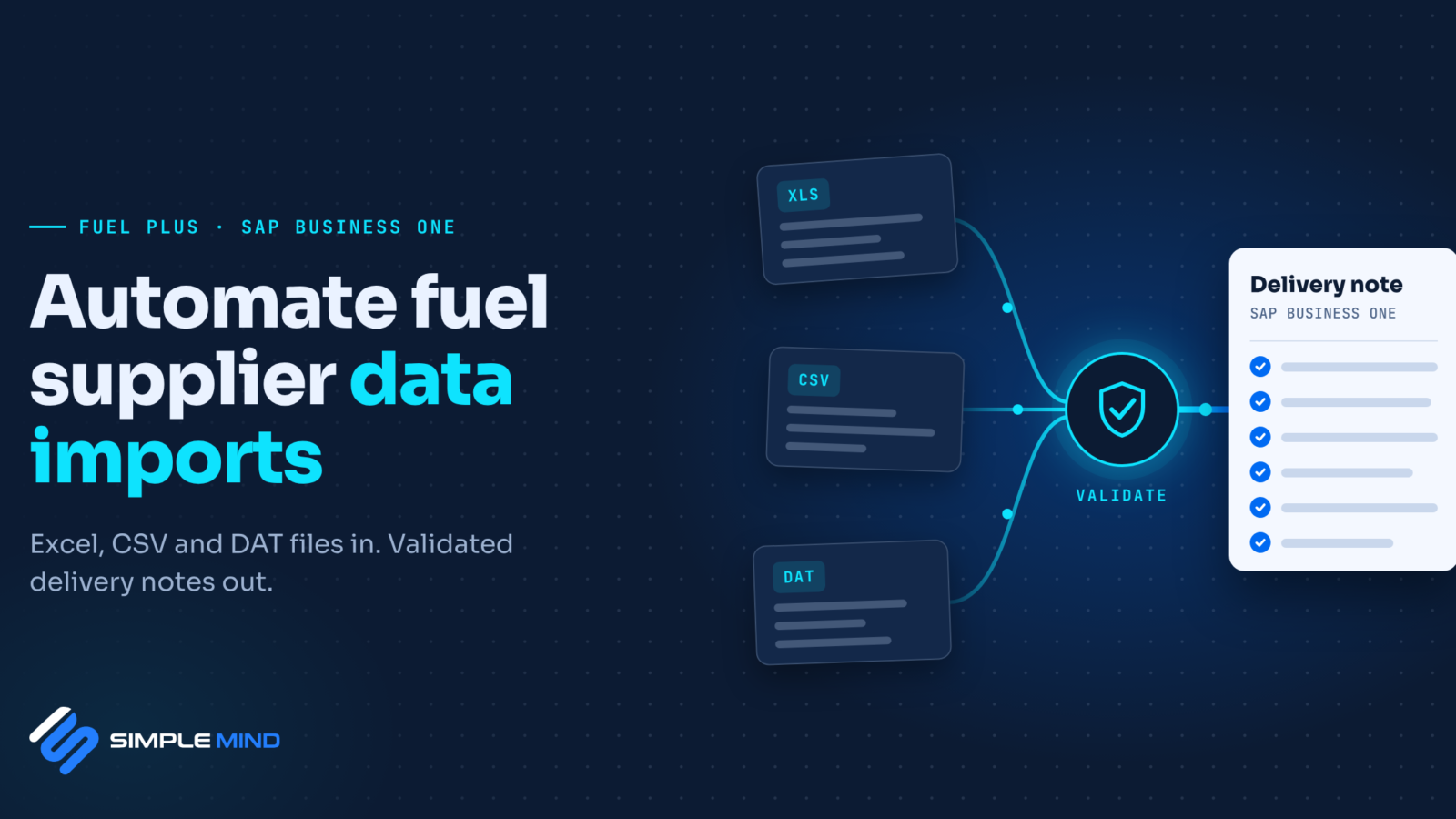
Somewhere in your finance office, there’s probably a person who knows exactly which column in which supplier’s file holds the delivery quantity. They know that one supplier puts the date in a different format. They know that another one’s file sometimes has an extra blank row that breaks everything. When they’re on leave, imports wait.
That person is valuable. They shouldn’t be spending their week copying numbers.
This post walks through why fuel supplier data is so messy, what goes wrong when it’s entered by hand, and how automated import into SAP Business One works in practice. It’s written for finance teams, SAP B1 administrators and IT people, so we’ll get a little technical in places.
Why every supplier sends something different
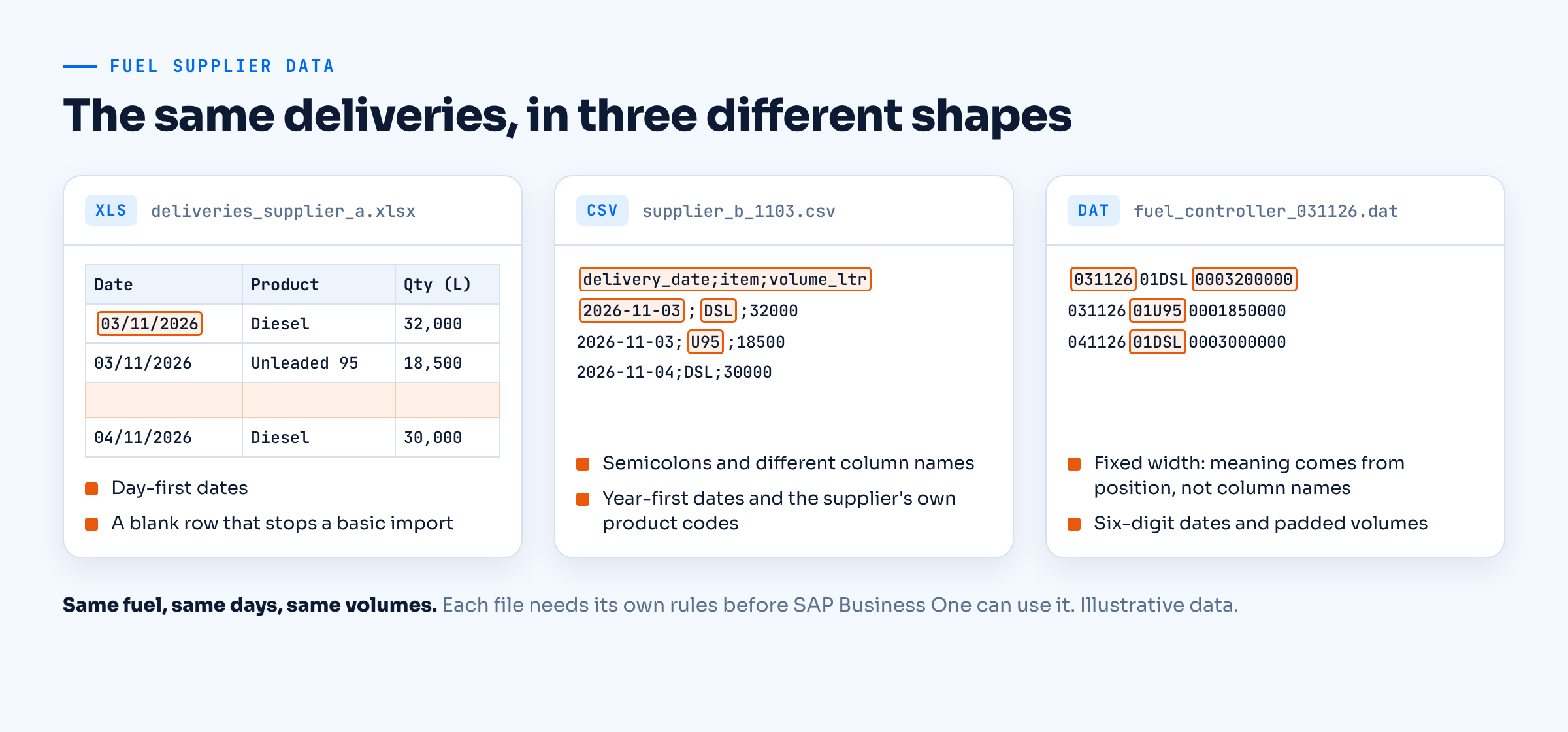
Fuel data comes from two main kinds of source: suppliers, who send delivery and invoice information, and fuel controllers, the forecourt systems that record what each pump dispensed. Each has its own export format.
In practice you’ll see:
- Excel files with layouts that change whenever someone at the supplier edits a template
- CSV files with different delimiters, column names and date formats
- DAT and other fixed-width or proprietary files exported by fuel controller systems
None of this is anyone’s fault. Each system was designed independently. But it means there’s no single “import” button that works for everything, and generic SAP B1 import tools don’t know how to read a fuel supplier’s file without significant setup.
What goes wrong with manual entry
When people re-key this data, the same errors appear again and again:
- Transposed digits in quantities or prices, which flow straight into costing and margins
- Wrong product codes, so diesel gets booked as petrol or a premium grade as standard
- Duplicate entries when a file is processed twice
- Missed deliveries when a file is overlooked
- Wrong dates, which put a delivery in the wrong period and break month-end
- Unit mismatches, for example litres in one source and a different unit in another
Each one is small. Together they mean your stock, your costs and your supplier balances can’t be fully trusted, and someone spends days at month end finding out why.
How automated import works
A properly automated import has four stages. This is how FUEL PLUS does it inside SAP Business One, but the principles apply whatever you use.
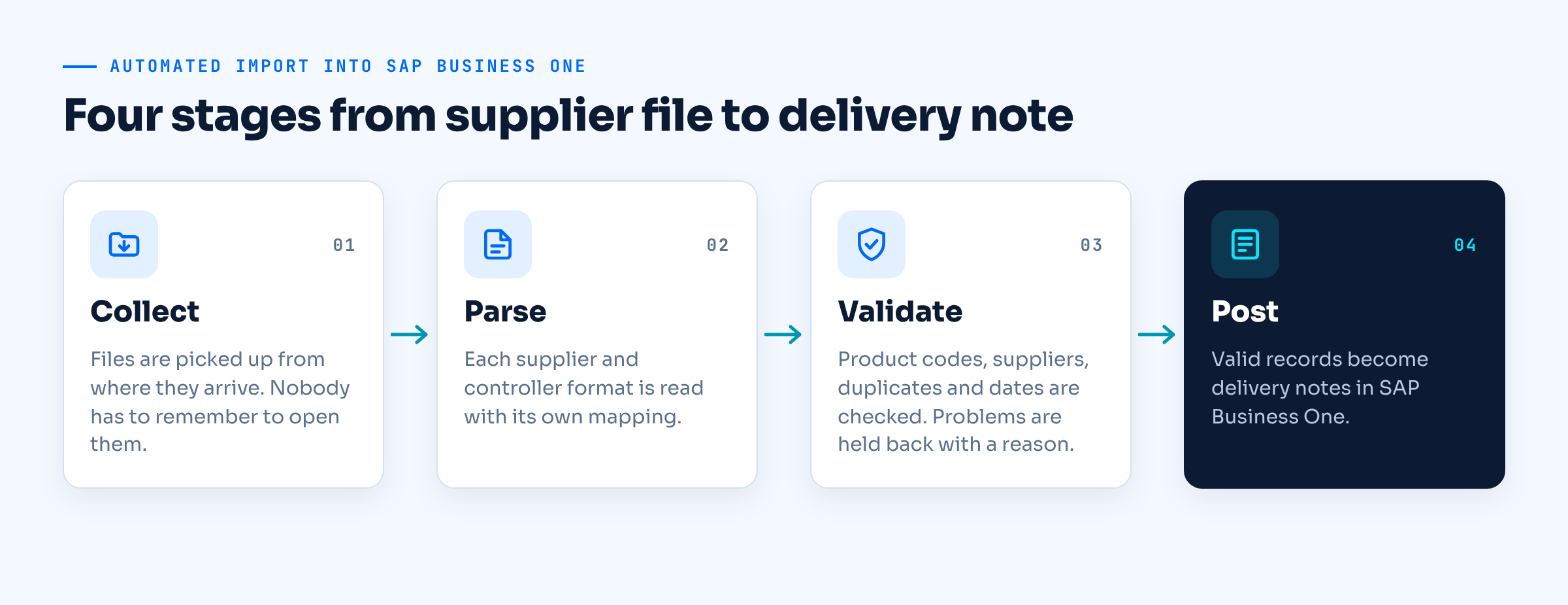
1. Collect. Files are picked up from where they arrive: a shared folder, an email inbox, or an FTP location. No one has to remember to open them.
2. Parse. Each supplier and controller format has its own mapping. The system knows that for Supplier A, column D is quantity and dates are day-first. For the fuel controller, it knows the fixed-width layout of the DAT file. New formats are added as a mapping, not as a new process.
3. Validate. Before anything touches SAP, the data is checked:
- Does the product code exist and map to a valid SAP item?
- Does the supplier exist as a business partner?
- Is the quantity within a sensible range?
- Has this delivery already been imported?
- Is the date in an open posting period?
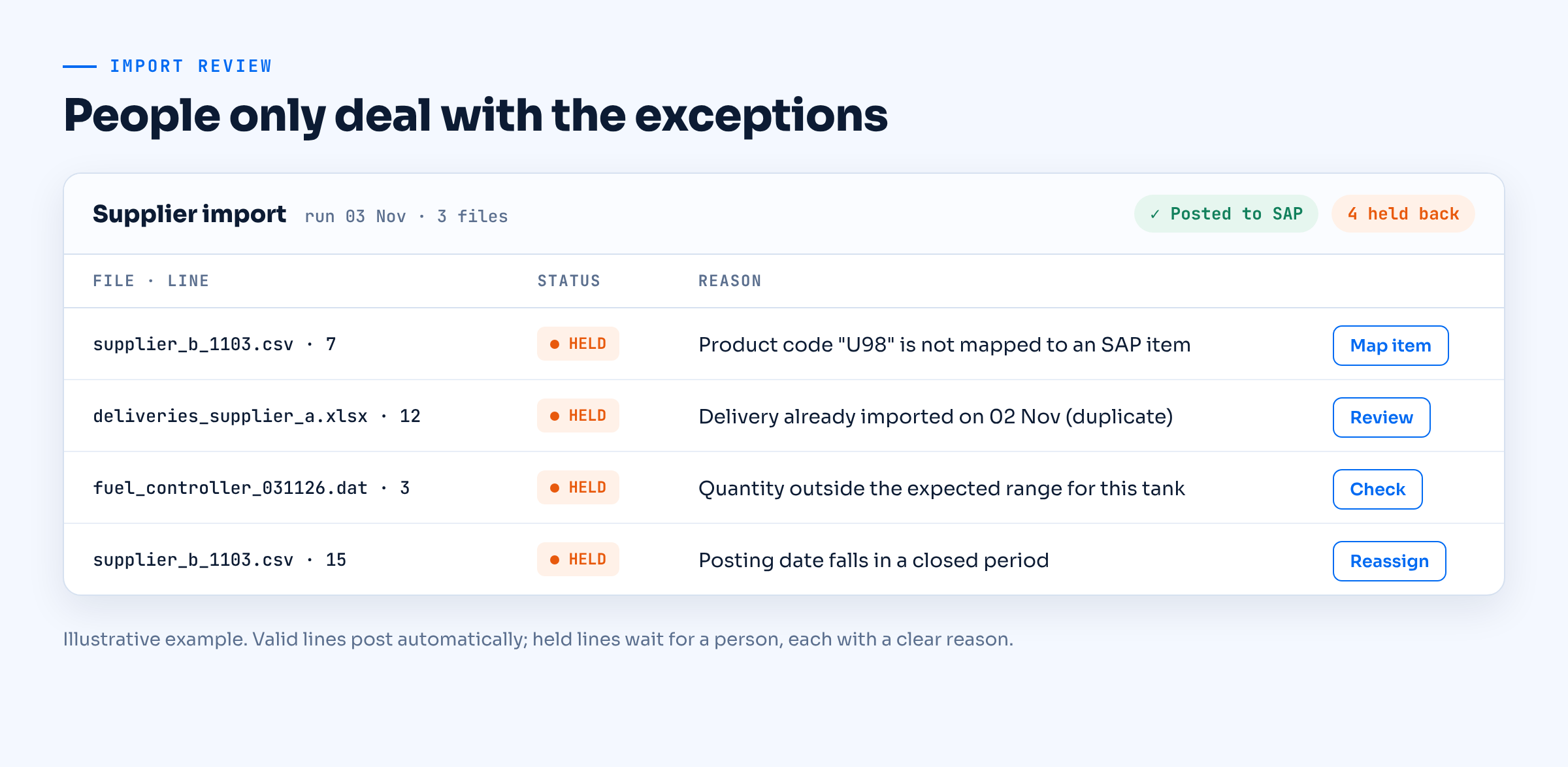
Anything that fails is held back with a clear reason, so a person deals with exceptions only, not every line.
4. Post. Valid records are created in SAP Business One as the right documents, typically delivery notes (goods receipts) linked to the supplier, with quantities, prices and dates exactly as received. From there, the normal SAP B1 process takes over: invoicing, stock valuation, payables.
Before and after
Here’s what that looks like on a typical week for the 50+ station network we work with.
| Before | After | |
|---|---|---|
| How data arrives | Files from several suppliers and controllers, opened one by one | Files picked up automatically |
| How it gets into SAP | Typed in by hand, line by line | Parsed, validated and posted as delivery notes |
| Time spent | Hours of manual entry | Minutes, mostly reviewing exceptions |
| Errors | Found at month end, if at all | Caught at import with a reason attached |
| Who can do it | The one person who knows the formats | Anyone who can review an exception list |
The time saving is the headline, but the bigger change is trust. When imported data is validated on the way in, finance stops double-checking everything on the way out.
Things to sort out before you automate
Automation won’t help if the basics are messy. Before you start:
- Clean your item master. Every fuel product should map to one SAP item code. Duplicates cause most import failures.
- Agree on units. Decide how you store volume and stick to it.
- Collect sample files from every source, including the odd ones from month end and holidays.
- Decide who owns exceptions. Someone needs to check the held-back list daily.
What about non-fuel data?
The same approach works for any recurring file that someone currently re-types: bank statements, price lists, customer orders. For broader data integration needs, our SOLO ETL product handles extract, transform and load between systems, and our SAP B1 integration services team can help connect SAP Business One to whatever else you run.
See it with your own file
The quickest way to judge this is with your own data. Send us a sample supplier file and we’ll show you your own supplier file imported in a demo, parsed, validated and posted into SAP Business One.